
As an IO-Link supplier, I understand the importance of keeping your IO-Link devices up-to-date with the latest firmware. Firmware updates can enhance device performance, add new features, and improve compatibility with other systems. In this blog post, I'll guide you through the process of updating the firmware of an IO-Link device, step by step.
Understanding the Basics of IO-Link and Firmware
Before we dive into the update process, let's briefly review what IO-Link is and why firmware updates matter. IO-Link is a standardized communication protocol (IEC 61131-9) used for connecting sensors and actuators to automation systems. It provides a simple, cost-effective way to exchange data between devices and controllers, enabling better control, monitoring, and diagnostics.
Firmware, on the other hand, is the software that runs on the IO-Link device. It controls the device's functionality and behavior, and it can be updated to improve its performance or add new features. Just like the software on your smartphone or computer, firmware can become outdated over time, which may lead to compatibility issues or reduced performance.
Preparing for the Firmware Update
Before you start the firmware update process, there are a few things you need to do to ensure a smooth and successful update:
- Check the Device Compatibility: Make sure the firmware update is compatible with your specific IO-Link device. Check the manufacturer's website or documentation for the latest firmware version and compatibility information.
- Backup Your Data: If your IO-Link device stores any important data, such as configuration settings or calibration values, make a backup before the update. This will ensure that you can restore your data if something goes wrong during the update process.
- Gather the Necessary Tools: You'll need a few tools to perform the firmware update, including a computer with the appropriate software, a communication cable (such as an Ethernet cable or USB cable), and the firmware update file.
- Read the Documentation: Carefully read the manufacturer's documentation for the firmware update process. This will provide you with detailed instructions and any specific requirements or precautions you need to follow.
Step-by-Step Guide to Updating the Firmware
Once you've completed the preparation steps, you're ready to start the firmware update process. Here's a general step-by-step guide:
- Connect the Device: Connect your IO-Link device to your computer using the appropriate communication cable. Make sure the connection is stable and secure.
- Launch the Update Software: Open the firmware update software on your computer. This software is usually provided by the device manufacturer and can be downloaded from their website.
- Select the Device: In the update software, select your IO-Link device from the list of available devices. The software may automatically detect the device, or you may need to manually select it based on its model number or serial number.
- Download the Firmware Update File: Download the latest firmware update file from the manufacturer's website. Make sure you download the correct file for your specific device model and version.
- Start the Update Process: In the update software, click the "Update" or "Start" button to begin the firmware update process. The software will verify the firmware update file and then transfer it to the IO-Link device.
- Wait for the Update to Complete: The firmware update process may take several minutes to complete, depending on the size of the update file and the speed of your communication connection. Do not interrupt the process or disconnect the device during the update.
- Verify the Update: Once the update is complete, the software will verify that the new firmware has been successfully installed on the device. You may need to restart the device or perform a system check to ensure that it is functioning properly.
Troubleshooting Tips
If you encounter any issues during the firmware update process, here are some troubleshooting tips:
- Check the Connection: Make sure the communication cable is properly connected and that there are no loose connections or damaged cables.
- Verify the Firmware File: Double-check that you have downloaded the correct firmware update file for your specific device model and version.
- Restart the Device and Computer: Sometimes, simply restarting the device and your computer can resolve connectivity issues or software glitches.
- Contact Technical Support: If you're still having problems, contact the device manufacturer's technical support team for assistance. They can provide you with more detailed troubleshooting steps or help you resolve any issues.
Benefits of Updating the Firmware
Updating the firmware of your IO-Link devices offers several benefits, including:
- Improved Performance: Firmware updates can optimize the device's performance, resulting in faster response times, more accurate data transmission, and better overall functionality.
- Enhanced Security: New firmware versions often include security patches and updates to protect your devices from potential vulnerabilities and cyber threats.
- Added Features and Functionality: Firmware updates can add new features and functionality to your devices, allowing you to take advantage of the latest technological advancements and improve your automation processes.
- Better Compatibility: Updating the firmware can improve the compatibility of your IO-Link devices with other systems and software, ensuring seamless integration and interoperability.
Conclusion
Updating the firmware of your IO-Link devices is an important part of maintaining their performance, security, and functionality. By following the steps outlined in this blog post and taking the necessary precautions, you can ensure a smooth and successful firmware update process.
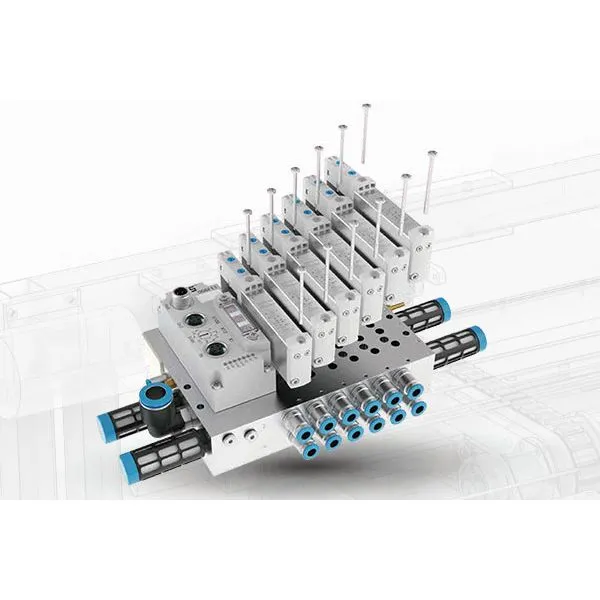
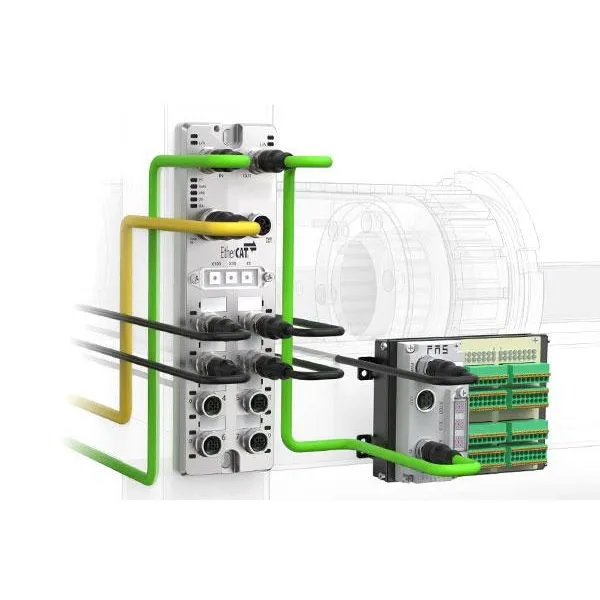
If you're interested in learning more about our IO-Link products, such as Valve Islands, Unmanaged Switch, or Multi-protocol Network Module, or if you have any questions about the firmware update process, please don't hesitate to contact us. We're here to help you find the best solutions for your automation needs and ensure that your IO-Link devices are always up-to-date and performing at their best.
References
- IO-Link Consortium. (n.d.). IO-Link - The Standard for Sensor and Actuator Communication. Retrieved from https://www.io-link.com/
- Device Manufacturer's Documentation. (n.d.). Firmware Update Guide. Retrieved from [Manufacturer's Website]