

As a supplier of Siemens HMI, I often receive inquiries from customers about how to display real - time data on Siemens HMI. In this blog, I will share some practical methods and steps to achieve this goal.
Understanding the Basics of Siemens HMI
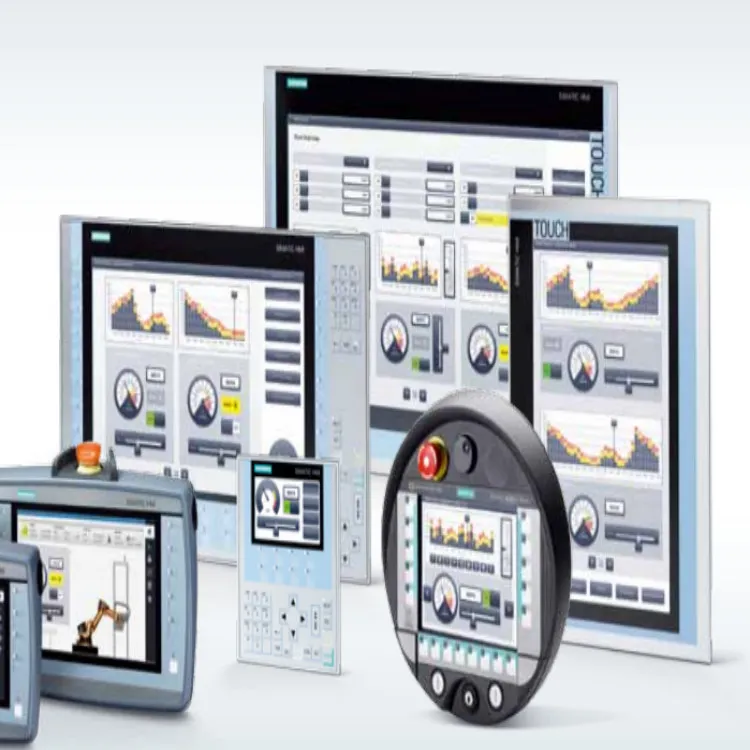
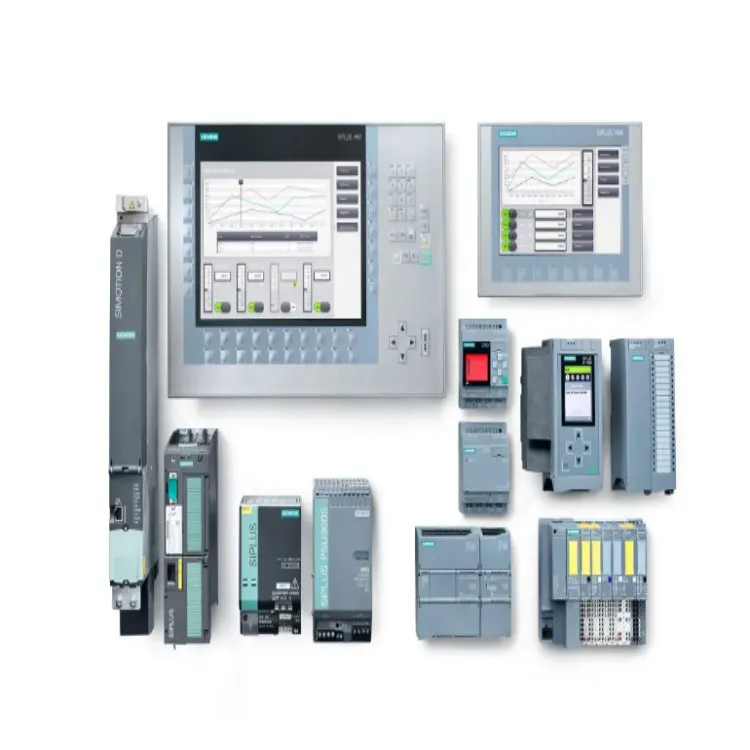
Before diving into the process of displaying real - time data, it's essential to have a basic understanding of Siemens HMI. There are different types of Siemens HMI, such as Siemens Basic HMI and Siemens SIMATIC HMI. Each type has its own features and capabilities, but they all share the common function of visualizing data.
Siemens Basic HMI is a cost - effective solution for small - to - medium - sized applications. It offers a user - friendly interface and basic functionality for data display and control. On the other hand, Siemens SIMATIC HMI is a more advanced option, suitable for complex industrial applications. It provides a wide range of features, including high - resolution displays, advanced graphics, and extensive connectivity options.
Step 1: Define the Data Source
The first step in displaying real - time data on Siemens HMI is to define the data source. The data can come from various sources, such as programmable logic controllers (PLCs), sensors, or other industrial devices. In most cases, the data is transferred from the data source to the HMI through a communication protocol.
Common communication protocols used in Siemens HMI systems include Profibus, Profinet, and Ethernet/IP. You need to ensure that the HMI and the data source support the same communication protocol. For example, if your PLC uses Profibus, you need to configure the HMI to communicate with the PLC via Profibus.
Step 2: Configure the Communication between HMI and Data Source
Once you have defined the data source, the next step is to configure the communication between the HMI and the data source. This involves setting up the communication parameters, such as the IP address, subnet mask, and gateway.
- PLC Configuration: If the data source is a PLC, you need to configure the PLC to allow communication with the HMI. This may involve enabling the relevant communication interface on the PLC and setting up the appropriate communication parameters.
- HMI Configuration: On the HMI side, you need to create a communication connection to the data source. In the Siemens WinCC (Windows Control Center) software, which is commonly used for HMI programming, you can create a new connection in the "Communication" section. You need to select the appropriate communication driver based on the communication protocol used.
Step 3: Create Data Tags
Data tags are used to represent the data in the HMI system. Each data tag corresponds to a specific data point in the data source. For example, if you want to display the temperature value from a sensor, you need to create a data tag for the temperature value.
- Tag Creation: In the WinCC software, you can create data tags in the "Tags" section. You need to specify the tag name, data type (such as integer, floating - point, or boolean), and the address in the data source where the data is stored.
- Tag Association: Once you have created the data tags, you need to associate them with the corresponding data points in the data source. This is usually done by mapping the tag address to the memory address in the PLC or other data source.
Step 4: Design the HMI Screen
After configuring the communication and creating the data tags, the next step is to design the HMI screen. The HMI screen is the visual interface through which the user can view the real - time data.
- Screen Layout: You can use the WinCC software to design the HMI screen. You can add various objects to the screen, such as text boxes, gauges, trend graphs, and buttons. The layout of the screen should be designed in a way that is easy for the user to understand and operate.
- Data Display Objects: To display the real - time data, you need to add data display objects to the screen. For example, you can use a text box to display the numerical value of the data, or a gauge to show the data in a graphical format. You need to associate these objects with the corresponding data tags.
Step 5: Testing and Debugging
Once you have designed the HMI screen, the final step is to test and debug the system. This involves checking the communication between the HMI and the data source, verifying the data transfer, and ensuring that the real - time data is displayed correctly on the HMI screen.
- Communication Testing: You can use the diagnostic tools in the WinCC software to test the communication between the HMI and the data source. These tools can help you identify and troubleshoot any communication issues.
- Data Verification: You can monitor the data transfer by checking the values of the data tags in the WinCC software. You can also use the real - time data display on the HMI screen to verify that the data is being displayed correctly.
Tips for Optimizing Real - Time Data Display
- Data Refresh Rate: You can adjust the data refresh rate to optimize the performance of the HMI system. A higher refresh rate means that the data on the HMI screen is updated more frequently, but it may also increase the system load. You need to find a balance between the data refresh rate and the system performance.
- Data Filtering and Aggregation: If you have a large amount of data, you can use data filtering and aggregation techniques to reduce the amount of data displayed on the HMI screen. This can improve the readability of the data and reduce the system load.
Conclusion
Displaying real - time data on Siemens HMI is a multi - step process that involves defining the data source, configuring the communication, creating data tags, designing the HMI screen, and testing and debugging the system. By following the steps outlined in this blog, you can successfully display real - time data on Siemens HMI.
As a Siemens HMI supplier, we have extensive experience in providing high - quality HMI solutions. If you are interested in purchasing Siemens HMI products or need help with HMI programming and configuration, please feel free to contact us for procurement and negotiation. We are committed to providing you with the best products and services to meet your industrial automation needs.
References
- Siemens WinCC User Manual
- Siemens PLC Programming Manual
- Industrial Communication Protocols Handbook