
In the realm of industrial automation, Programmable Logic Controllers (PLCs) have long been the cornerstone of control systems. They offer reliability, flexibility, and efficiency in managing various industrial processes. With the advancement of technology, touch - screen interfaces have become an integral part of modern PLC systems, providing an intuitive and user - friendly way to interact with the PLC. As a general PLC supplier, I am excited to share with you how to use touch - screen interfaces with a general PLC.
Understanding the Basics of PLC and Touch - Screen Interfaces
Before delving into the usage, it is essential to understand what a PLC and a touch - screen interface are. A PLC is an industrial computer that can be programmed to control machinery, processes, and automation systems. It reads input signals from sensors, processes the data based on the programmed logic, and then sends output signals to actuators to perform specific tasks.
On the other hand, a touch - screen interface is a display device that allows users to interact with the system by touching the screen. It can present graphical representations of the industrial process, provide real - time data, and enable users to control and monitor the PLC system.
Selecting the Right Touch - Screen Interface for Your PLC
The first step in using a touch - screen interface with a general PLC is to select the appropriate touch - screen device. Consider the following factors:
Compatibility
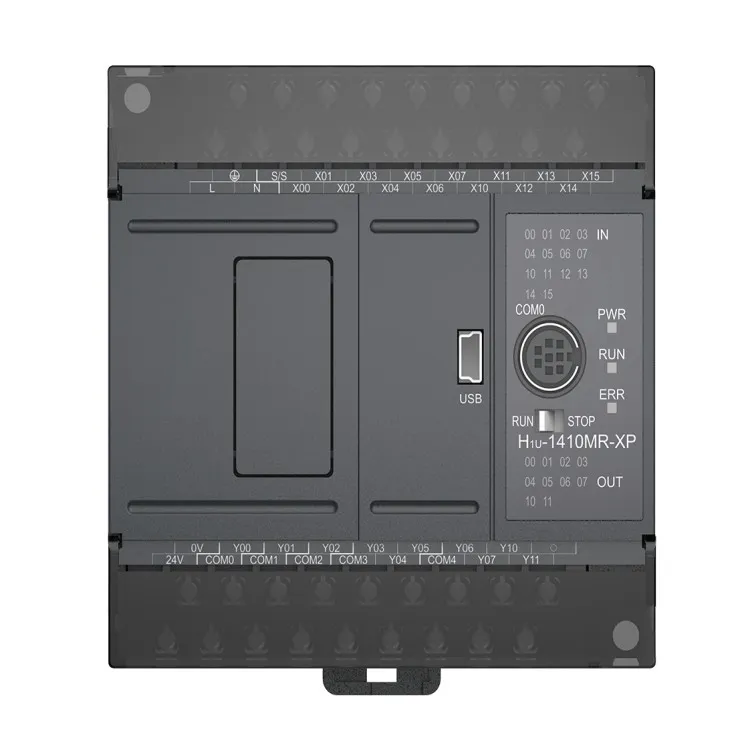
Ensure that the touch - screen interface is compatible with your PLC. Most modern touch - screen manufacturers provide drivers and communication protocols that support a wide range of PLC models. Check the specifications of both the touch - screen and the PLC to ensure seamless communication. For example, if you are using our Compact Mini PLC, make sure the touch - screen can communicate with it using the supported protocols such as Modbus RTU or Profibus.
Screen Size and Resolution
The size and resolution of the touch - screen depend on the application requirements. For applications where detailed information needs to be displayed, a larger screen with higher resolution is preferable. However, for space - constrained environments, a smaller touch - screen may be more suitable.
Durability
In industrial environments, the touch - screen interface needs to be durable. Look for touch - screens that are resistant to dust, moisture, and mechanical damage. They should also be able to withstand a wide range of temperatures.
Establishing Communication between the PLC and the Touch - Screen Interface
Once you have selected the right touch - screen interface, the next step is to establish communication between the PLC and the touch - screen.
Communication Protocols
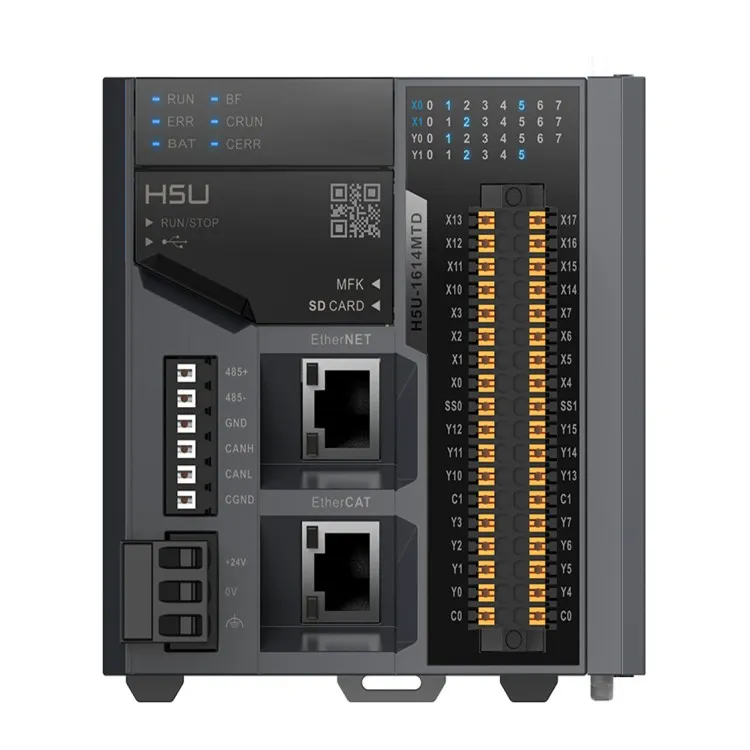
There are several communication protocols available for connecting a PLC to a touch - screen interface. Some of the commonly used protocols include Modbus, Profibus, and Ethernet/IP. Configure the communication settings on both the PLC and the touch - screen interface according to the selected protocol. For instance, if you are using our EtherCAT Bus PLC, you can take advantage of the high - speed communication capabilities of the EtherCAT protocol.
Wiring and Connection
Proper wiring is crucial for reliable communication. Follow the wiring diagrams provided by the PLC and touch - screen manufacturers. Ensure that all connections are secure and that the power supply is stable.
Programming the Touch - Screen Interface
After establishing communication, you need to program the touch - screen interface to interact with the PLC.
Creating Screens
Use the programming software provided by the touch - screen manufacturer to create screens. These screens can display various types of information such as process values, alarms, and status indicators. You can also create buttons, sliders, and other control elements on the screen to send commands to the PLC.
Data Binding
Data binding is the process of linking the data on the touch - screen interface to the memory addresses in the PLC. This allows the touch - screen to read data from the PLC and write data back to it. For example, if you want to display the temperature value from a sensor connected to the PLC on the touch - screen, you need to bind the appropriate memory address in the PLC to a display element on the touch - screen.
Alarm and Event Handling
Program the touch - screen interface to handle alarms and events. When an alarm condition occurs in the PLC, the touch - screen can display an alarm message and provide information about the cause of the alarm. You can also configure the touch - screen to perform certain actions when an alarm occurs, such as sending a notification or shutting down a process.
Using the Touch - Screen Interface for Monitoring and Control
Once the touch - screen interface is programmed, you can start using it for monitoring and controlling the PLC system.
Real - Time Monitoring
The touch - screen interface provides real - time information about the industrial process. You can monitor variables such as temperature, pressure, and flow rate on the screen. This allows you to quickly identify any abnormal conditions and take appropriate actions.
Manual Control
In addition to monitoring, the touch - screen interface allows you to manually control the PLC system. You can use the buttons and sliders on the screen to start, stop, or adjust the operation of the machinery. For example, if you want to change the speed of a motor connected to the PLC, you can use a slider on the touch - screen to set the desired speed.
Recipe Management
Recipe management is an important feature in many industrial applications. You can use the touch - screen interface to store and recall different process recipes. For example, in a food processing plant, you can have different recipes for different products. By selecting a recipe on the touch - screen, the PLC can automatically adjust the process parameters to produce the desired product.
Troubleshooting Common Issues
Even with proper installation and programming, you may encounter some issues when using a touch - screen interface with a PLC. Here are some common issues and their solutions:
Communication Errors
If there are communication errors between the PLC and the touch - screen interface, check the communication settings, wiring, and power supply. Make sure that the communication protocol is correctly configured on both devices.
Screen Freezing or Unresponsiveness
If the touch - screen freezes or becomes unresponsive, it may be due to a software glitch or a hardware problem. Try restarting the touch - screen and the PLC. If the problem persists, check the software version and update it if necessary.
Data Display Errors
If the data displayed on the touch - screen is incorrect, check the data binding settings. Make sure that the memory addresses in the PLC are correctly bound to the display elements on the touch - screen.
Conclusion
Using a touch - screen interface with a general PLC can significantly enhance the usability and efficiency of your industrial automation system. By following the steps outlined in this blog, you can select the right touch - screen interface, establish communication with the PLC, program the interface, and use it for monitoring and control.
As a general PLC supplier, we offer a wide range of PLC products, including Compact Mini PLC, EtherCAT Bus PLC, and 485 Pulse PLC. If you are interested in purchasing our PLC products or need further assistance with using touch - screen interfaces with PLCs, please contact us for procurement and negotiation.
References
- PLC Programming Handbook, various editions
- Touch - Screen Interface Design Guidelines, industry standards documents
- Manufacturer's manuals for PLCs and touch - screen interfaces